STEP Files: Definition and Creation


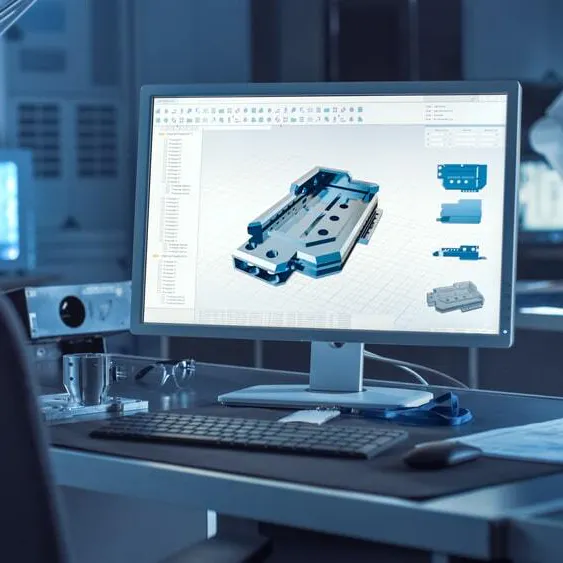
A Standard for the Exchange of Product (STEP) file represents a neutral Computer-Aided Design (CAD) format defined under the ISO 10303 standard, and the structure preserves solid geometry, surface data, and organized assemblies for engineering and manufacturing workflows. A STEP file facilitates reliable data exchange by preserving dimensional accuracy and part hierarchy across different design platforms. It starts with a specified CAD model, validated for geometry, before exporting into a neutral structure that retains essential features.
Viewing a STEP file involves loading the model into compatible software that interprets solids, surfaces, and spatial alignment in a manner that reflects the original design intent. Exporting a STEP file supports manufacturing processes by maintaining clean geometry and stable assemblies that guide downstream production steps. Conversion may preserve geometry but can lead to data loss when converting from parametric (STEP) to mesh (e.g., STL) due to fundamental format differences.
The STEP file types (AP203, AP214, AP242) meet different engineering needs by varying metadata, color, and tolerance info. They are used in mechanical design, product development, manufacturing, simulation, and quality inspection, relying on accurate geometry and organized assemblies. Best practices are validating geometry before export, choosing the right version, and verifying files post-conversion for consistency.
A workflow diagram for STEP processes follows a precise sequence. STL emphasizes triangulated meshes, Object (OBJ) includes color info, and 3D Manufacturing Format (3MF) carries metadata, while STEP is ideal for solid geometry and structured assemblies. In engineering, STEP files ensure consistent communication by maintaining complex models during the development cycle.
What is a STEP File?
A Standard for the Exchange of Product (STEP) is a file format used for representing 3D models and assemblies. STEP file follows the ISO 10303 standard, which ensures compatibility between different software systems used in design and manufacturing. It stores detailed 3D geometry (part structures and assembly information), allowing seamless data transfer between different platforms. The format is commonly used in engineering and manufacturing workflows for precise and consistent model exchange.
What is in a STEP File?
A Standard for the Exchange of Product (STEP) file contains detailed information used to describe 3D models and assemblies. STEP files include components (individual parts), which define the geometry, dimensions, and material properties. Assemblies are represented by the relationships between parts, ensuring the correct arrangement and interactions. STEP files carry metadata that provide context for the design (part numbers and manufacturing instructions). The inclusion of the elements is allowed for accurate and efficient sharing of product data across different platforms and systems.
"A STEP file represents the moment a design becomes trustworthy outside its native CAD system, because the geometry must stand on its own without feature history or proprietary context. A clean STEP file signals disciplined modeling and readiness for manufacturing, simulation, or vendor handoff, while failures typically reveal upstream design weaknesses rather than format limitations. Creating a STEP file is therefore less about exporting and more about validation: confirming watertight geometry, correct structure, and appropriate application protocol so the model can survive translation and support real decisions involving cost, tooling, and production."
What are STEP Files used for?
Standard for the Exchange of Product (STEP) files are used for exchanging 3D model data between different computer-aided design (CAD) systems. They allow the transfer of detailed product information, including geometry, parts, and assembly structures. The files support compatibility across various platforms, ensuring accurate data sharing in engineering, manufacturing, and product development processes. STEP files facilitate collaboration by preserving design integrity and reducing errors during the transfer of product data.
How does a STEP File Extension Work in CAD Software?
A Standard for the Exchange of Product (STEP) file extension works in CAD software by serving as a neutral format that transfers precise 3D geometry and structured assembly data across different design platforms. The extension follows the ISO 10303 standard, which defines a unified method for representing product information in a consistent and organized structure. A STEP file preserves solids, surfaces, and part relationships in a way that maintains dimensional accuracy and assembly hierarchy during import and export. The extension supports engineering workflows by allowing complex models to move between software systems without losing critical geometric or organizational detail.
Is a STEP File the Same as a CAD File?
Yes, a Standard for the Exchange of Product (STEP) file is not the same as a Computer-Aided Design (CAD) file, though they represent 3D models. A CAD file is native to a specific computer-aided design software, containing editable design data, while a STEP file is a neutral format used for data exchange between different CAD systems. STEP files store 3D geometry, assembly information, and metadata, making them suitable for transferring designs across different platforms, while a CAD file is for use within one particular software environment.
What is the Importance of a STEP File?
The importance of the Standard for the Exchange of Product (STEP) file lies in engineering and manufacturing workflows because it provides a neutral format that supports reliable CAD interoperability across different software platforms. The structure preserves complete assemblies by maintaining part hierarchy, spatial alignment, and dimensional accuracy during data transfer. A STEP file strengthens collaboration by offering a stable method for sharing 3D models that retain precise geometry and organized component relationships from design through production.
Why is the STEP File Extension Important for 3D Printing?
The STEP file extension is important for 3D printing because it provides a neutral format that preserves precise geometry and organized assembly data across different design platforms. STEP files are not directly printable; they must be converted into mesh formats (e.g., STL, 3MF) before 3D printing. The format supports the production workflows of 3D printing by allowing complex assemblies to retain hierarchy and alignment, ensuring that every component remains consistent during the transition from digital design to additive manufacturing. The importance of the extension lies in its ability to deliver a stable foundation for collaboration, accurate production, and dependable communication between engineering and manufacturing environments.
Who Created the STEP File Format?
The Standard for the Exchange of Product (STEP) file format was created by the International Organization for Standardization (ISO), and the format was developed through a coordinated effort to establish a universal method for exchanging 3D product data. The committee develops technological standards, notably creating the STEP file format in the mid-1980s for CAD programs. ISO 10303 was first published in 1994, with new parts added later. The STEP file was developed by ISO’s Technical Committee 184 and Subcommittee 4, which brought together experts from engineering, manufacturing, and software to create a neutral, geometric accuracy-preserving format. It allows geometry, assemblies, tolerances, and product data to be represented independently of CAD systems. The format addressed global needs for reliable data transfer amid proprietary systems, which is essential for interoperability, data integrity, error reduction, and collaboration across engineering disciplines and teams.
How to Convert a STEP File?
To convert a STEP file, follow the three processes below.
- Convert STEP File to STL File. Transform the solid geometry into a triangulated mesh suitable for additive manufacturing.
- Convert STEP File to DWG File. Export the model into a format that supports detailed drafting, dimensional documentation, and structured 2D representation.
- Convert STEP File to DXF File. Generate a geometry‑based outline that supports laser cutting, CNC profiling, and other 2D production processes.
Process 1 of 3
Convert STEP File to STL File
Understanding the Conversion Process
The conversion process begins with recognizing that a Standard for the Exchange of Product (STEP) file stores solid geometry and assembly structure, while a Standard Triangle Language (STL) file represents a mesh made of triangles. The conversion process transforms precise surfaces into a faceted representation that supports additive manufacturing workflows. A clear understanding of the transformation helps maintain dimensional accuracy during downstream production. Awareness of mesh density, surface quality, and file size strengthens control over the final printed result. Understanding the conversion from STEP to STL file is important because effective conversion maintains the original design's integrity while readying it for further use and fabrication.
Step-by-Step Conversion Guide:
- Open and import the STEP file into a compatible CAD platform.
- Navigate and adjust display settings to confirm that solids and surfaces load correctly.
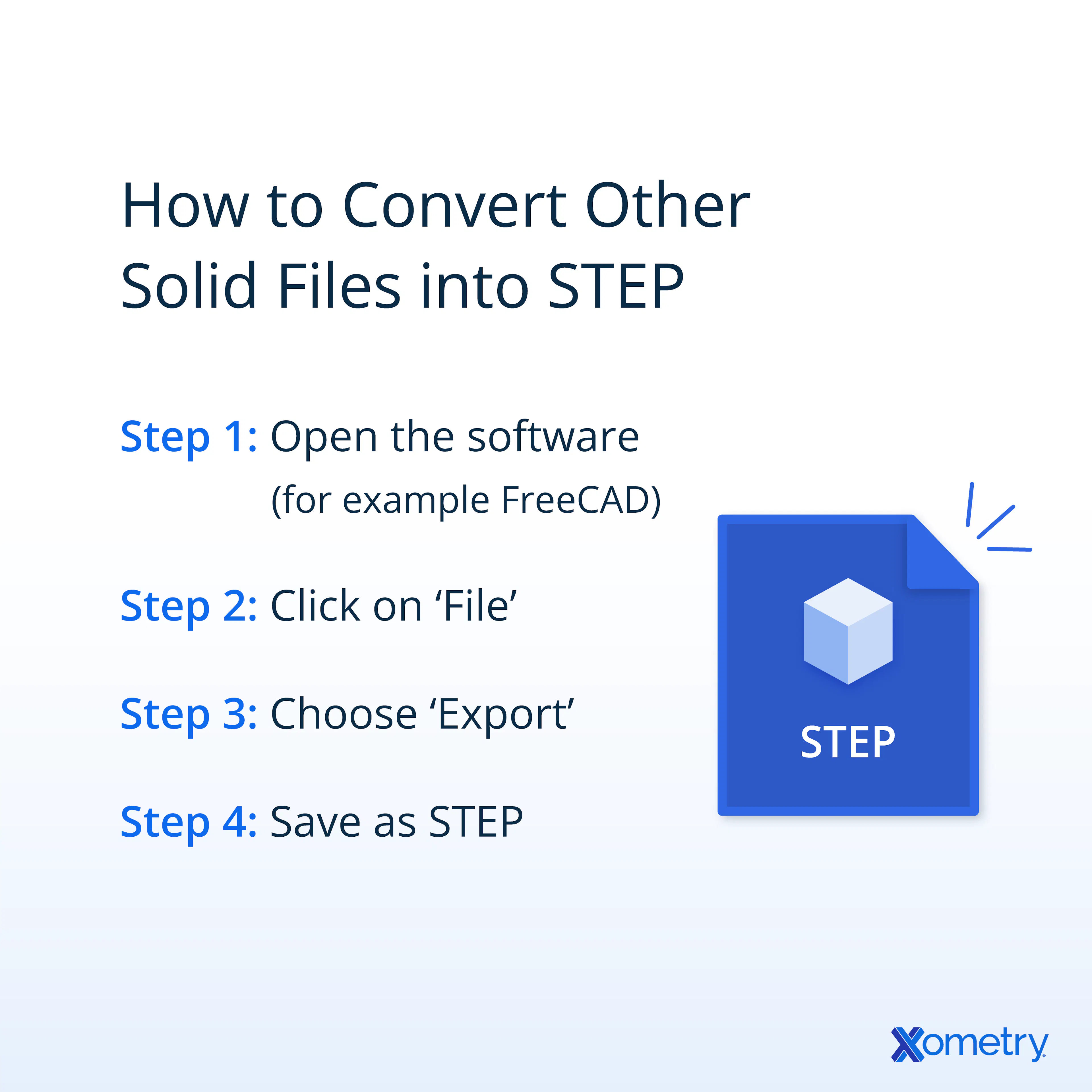
- Select the export or save‑as function and choose STL as the output format.
- Set mesh resolution to achieve a balance between detail and manageable file size.
- Save the STL file and verify the mesh in a viewer to confirm accuracy.
Pro Tip: Use a moderate mesh resolution to maintain smooth surfaces without creating unnecessarily large files. For streamlined manufacturing preparation, add a note that dedicated mesh tools (e.g., MeshLab or Netfabb) can assist with mesh repair and optimization post-export.
How to Create a STEP File?
To create a Standard for the Exchange of Product (STEP) file, there are five steps to follow. First, open Computer-Aided Design (CAD) software that supports structured 3D modeling, and the process follows a precise sequence from initial setup to final optimization. A new project starts when the CAD software opens a blank file, and the blank file serves as a workspace; the foundation is built through the actual modeling steps that follow. Second, design the 3D model through added features, adjusted dimensions, or refined surfaces, and each modification contributes to a complete structure ready for export. Third, use the 'Export' or 'Save As' function to generate a .step or .stp file from the completed 3D model. The neutral format preserves geometry for use across different engineering platforms. Fourth, verify the files for errors. Ensure that no missing faces, distorted edges, or translation errors appear after export. Lastly, optimize the final output to reduce file size or adjust compatibility settings when required. The optimization stage ensures smooth transfer, faster loading, and reliable performance in downstream manufacturing workflows.
1. Open your CAD Software and Create a New File.
Opening the Computer-Aided Design (CAD) software and creating a new file sets up a workspace for the 3D model, providing a clean environment free from previous data. It supports accurate setup of units, orientation, and reference planes, ensuring consistent standards for manufacturing or quoting. A well-prepared file foundation reduces errors in modeling and export workflow.
2. Design or modify your 3D model.
Designing or modifying your 3D model defines the geometry transferred into the Standard for the Exchange of Product (STEP) format. Careful creation of features, assemblies, and clear relationships ensures accurate export. Clean modeling reduces gaps, overlaps, and irregular surfaces that cause issues in manufacturing. Thoughtful design improves dimensional reliability for machining or 3D printing. The STEP file's quality directly reflects the CAD quality model.
3. Save/export as .STEP or .STP
Exporting as .step or .stp converts the CAD model into a neutral format for cross-platform use, preserving solids, surfaces, assembly structure, units, tolerances, and orientation. Proper settings ensure compatibility and support collaboration across design, quoting, and manufacturing teams, as the export creates the file used throughout the digital supply chain.
4. Check the File in a STEP Viewer or CAD Software for Errors.
Checking the file in a viewer or CAD platform confirms the exported STEP model loads correctly. Visual inspection reveals missing parts, broken surfaces, or misaligned components that occur during translation. Verification detects issues early, ensuring partners receive accurate geometry. The step is important to prevent errors that waste time, material, and money in later processes.
5. Optimize or Convert the File if Required for Size or Compatibility.
Optimizing or converting the STEP file improves transfer, reduces file size, and supports integration with analysis and manufacturing tools. It balances geometric detail and performance, ensuring reliable sharing and faster processing across engineering applications environments.
How to Open STEP Files?
To open STEP files, follow the five steps below.
- Locate the Standard for the Exchange of Product (STEP) file on your PC or device. Ensure that the correct model enters the viewing or production workflow.
- Double-click the file, or right-click and select “Open With.” The step is to initiate the viewing process through an associated application.
- Choose a compatible Computer-Aided Design (CAD) software or STEP viewer. Selecting the right CAD platform or viewer to interpret the geometry, surfaces, and assemblies stored in the file.
- Check the file extension. Verifying the extension guarantees the model uses the .step or .stp format before loading it into the software.
- Use an online or desktop STEP Viewer. Examining geometry and assemblies without the need for a complete CAD software environment.
1. Locate the STEP File on your PC or Device.
Finding the STEP file is important for viewing or inspection, as it guarantees the correct model is added to the workflow. Keeping the directory well-organized helps navigation, and selecting the correct version avoids errors from outdated models. Accurate file location improves the process quality accuracy.
2. Double-click the File, or Right-click and Select “Open With.”
Double‑clicking the file or choosing “Open With” opens the model in the application, offering a straightforward, error-resistant method to view data reliably. It simplifies file access, reduces handling mistakes, and guarantees a seamless transition from data to display, supporting a smooth workflow consistency.
3. Choose a Compatible CAD Software or STEP Viewer
Selecting a compatible viewer guarantees correct rendering of geometry, surfaces, and assemblies, allowing dependable interpretation of solid models and spatial relations. It avoids distortion or missing features and improves clarity for measurements, annotations, and inspection tasks, maintaining the integrity of the model analysis.
4. Check the File Extension
Verifying the extension ensures the model uses .step or .stp format before opening, preventing confusion with mesh or native CAD files that need different handling. It guarantees the correct workflow for each file, supports clear communication when sharing or reviewing models, and protects against format‑related errors.
5. Use an Online or Desktop STEP Viewer
Using an online or desktop viewer offers a practical way to inspect geometry without a complete CAD setup. The step allows quick access to assemblies, dimensions, and details, maintaining productivity when complete modeling is not needed. It allows stakeholders to review models without advanced software, providing accessible and reliable visualization for quoting, design review, and manufacturing coordination.
What are the Types of STEP Files?
The types of STEP files are listed below.
- Application Protocol 203 (AP203): The type of Standard for the Exchange of Product (STEP) file that stores 3D geometry and assembly structure with a focus on mechanical design data. AP203 supports workflows that require accurate part relationships and stable geometry transfer across Computer-Aided Design (CAD) platforms.
- Application Protocol 214 (AP214): The STEP file type extends AP203 by adding color, layer, and product-definition details. AP214 supports automotive and other manufacturing workflows with additional metadata like colors, layers, and configuration control.
- Application Protocol 242 (AP242): A STEP file combining AP203 and AP214, with advanced features (geometric tolerances and better assembly management). It supports high‑precision engineering environments that need consistent data exchange and detailed product information definitions.
What are the Best STEP File Converters?
The best STEP file converters are listed below.
- FreeCAD: A Standard for the Exchange of Product (STEP) file converter that imports solid geometry and exports it into multiple manufacturing‑ready formats. FreeCAD supports structured assemblies and preserves dimensional accuracy during translation.
- Fusion 360: A STEP file converter that processes solids, surfaces, and organized part relationships for downstream use. Fusion 360 maintains stable geometry during export to formats suited for additive or subtractive production.
- SolidWorks: A STEP file converter that interprets neutral geometry and rebuilds structured features for further modification. SolidWorks exports clean and consistent models that support manufacturing workflows requiring precise dimensional control.
- Onshape: A STEP file converter through a cloud‑based environment that processes assemblies and solid bodies without local installation. Onshape maintains organized part hierarchies and stable geometry during export to various production formats.
- Autodesk: A STEP file converter that reconstructs solids and assemblies in a parametric environment. Autodesk Inventor exports models into formats suited for fabrication while preserving alignment and structural relationships.
- Siemens NX: A STEP file converter that handles complex and high‑precision geometry in advanced engineering environments. Siemens NX maintains detailed product definitions during export to formats used in manufacturing.
What are the Best Applications for STEP Files?
The best applications for STEP files are listed below.
- Mechanical Design: The application uses Standard for the Exchange of Product (STEP) files to transfer precise solid geometry and structured assemblies across different engineering platforms. Mechanical design benefits from stable dimensional accuracy that supports reliable modeling and production workflows.
- Product Development: The application relies on STEP files to maintain organized part relationships during concept refinement and prototype creation. Product development gains consistency because the format preserves geometry and assembly hierarchy throughout each design stage.
- Manufacturing Engineering: The application applies STEP files to communicate detailed product definitions between design teams and production systems. Manufacturing engineering depends on the format’s ability to retain tolerances, surfaces, and spatial alignment during data exchange.
- Quality Inspection: The application uses STEP files to compare manufactured parts with original digital models. Quality inspection benefits from accurate geometry that supports measurement, verification, and dimensional analysis.
- Simulation and Analysis: The application relies on STEP files to supply clean and complete geometry for structural, thermal, or motion studies. Simulation and analysis require stable surfaces and organized assemblies to produce reliable computational results.
- Supply Chain Collaboration: The application uses STEP files to share product information among partners working with different Computer-Aided Design (CAD) environments. Supply chain collaboration benefits from a neutral format that maintains clarity in geometry and part structure during communication.
Summary
This article presented the STEP file, explained what it is, and discussed how to create, view, and convert the file type. To learn more about STEP files, contact a Xometry representative.
Xometry provides a wide range of manufacturing capabilities, including 3D printing and other value-added services for all of your prototyping and production needs. Visit our website to learn more or to request a free, no-obligation quote.
Disclaimer
The content appearing on this webpage is for informational purposes only. Xometry makes no representation or warranty of any kind, be it expressed or implied, as to the accuracy, completeness, or validity of the information. Any performance parameters, geometric tolerances, specific design features, quality and types of materials, or processes should not be inferred to represent what will be delivered by third-party suppliers or manufacturers through Xometry’s network. Buyers seeking quotes for parts are responsible for defining the specific requirements for those parts. Please refer to our terms and conditions for more information.