
SLDPRT to STL Converter: How To Convert SLDPRT to STL Files


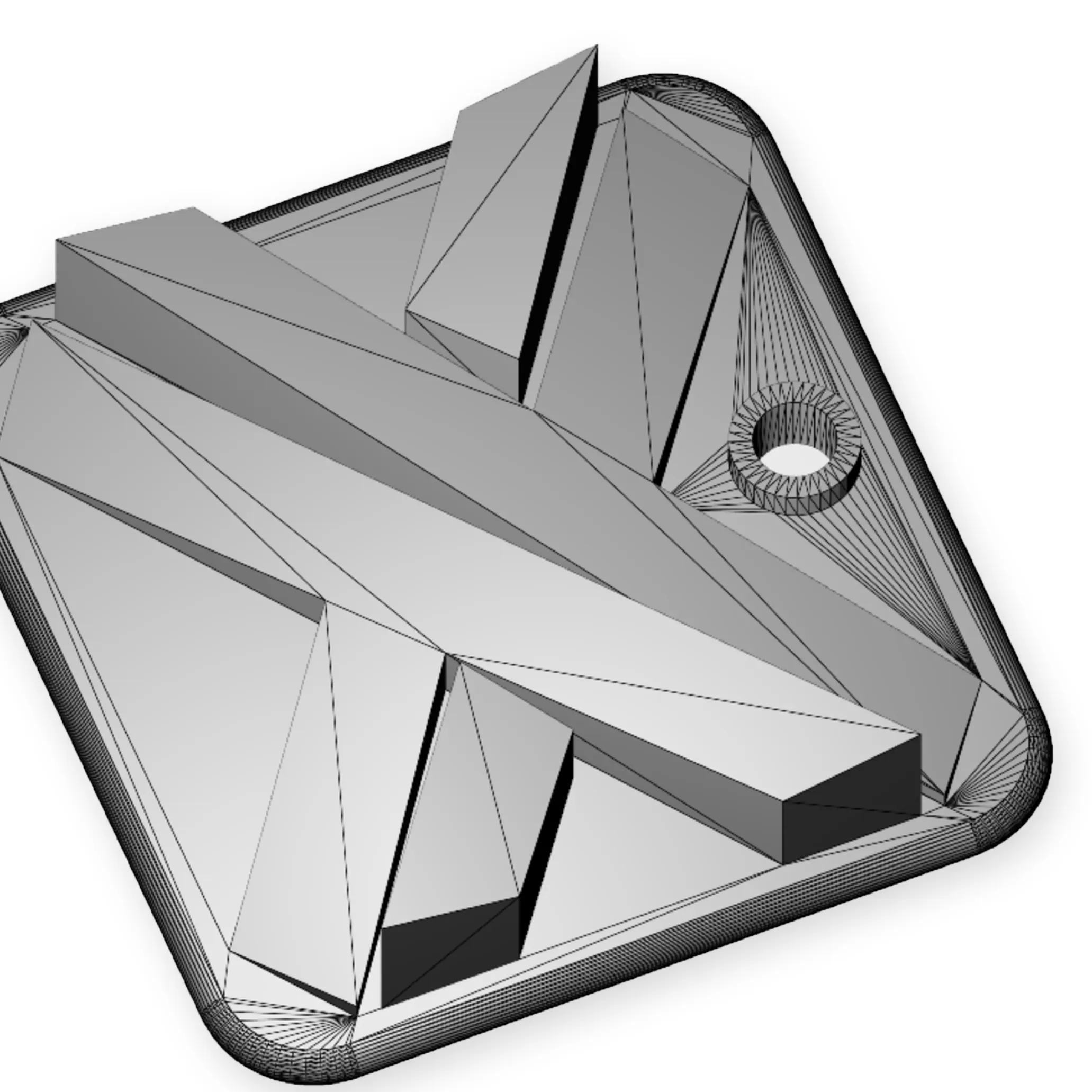
SolidWorks Part File (SLDPRT) to Standard Tessellation Language (sometimes called Standard Triangle Language) (STL) is a process to convert SLDPRT to STL, creating a direct path from detailed parametric models to mesh‑based geometry suitable for digital manufacturing. A SLDPRT file to STL conversion transforms a feature‑rich SolidWorks part into a triangulated surface format that supports rapid quoting, automated manufacturability checks, and streamlined production workflows. A SolidWorks to STL converter prepares a part model for 3-dimensional (3D) printing and online fabrication platforms that rely on lightweight mesh data for fast processing. A conversion step delivers practical benefits (faster file uploads, smoother compatibility with manufacturing software, and reliable geometry interpretation) across multiple production methods. A consistent conversion process strengthens accuracy, reduces preparation time, and supports efficient transitions from design to manufacturing.
Tip: STLs are only useful for 3D printing services (and unusable for any other process), so we recommend keeping the native the SLDPRT file saved somewhere on your device. If it’s needed down the road, you’ll still have it and you’ll still be able to export a copy of it as an STL.
How to Convert SLDPRT to STL Files?
To convert a SolidWorks Part File (SLDPRT) to Standard Tessellation Language or Standard Tessellation Language (STL) files, follow the eleven steps below.
- Open the SolidWorks® (SLDPRT) File. Open the part model to prepare geometry for mesh export and establish a foundation for smooth transfer from parametric data to manufacturing format platforms.
- Go to “File” and Select “Save As” in SolidWorks®. Access the menu to export mesh-based output. Select the command to convert a feature-based model to triangulated format.
- Choose “STL” as the File Type from the drop-down menu. Select the mesh format for compatibility with automated quoting and digital fabrication. Select the option to generate a mesh file supporting rapid processing.
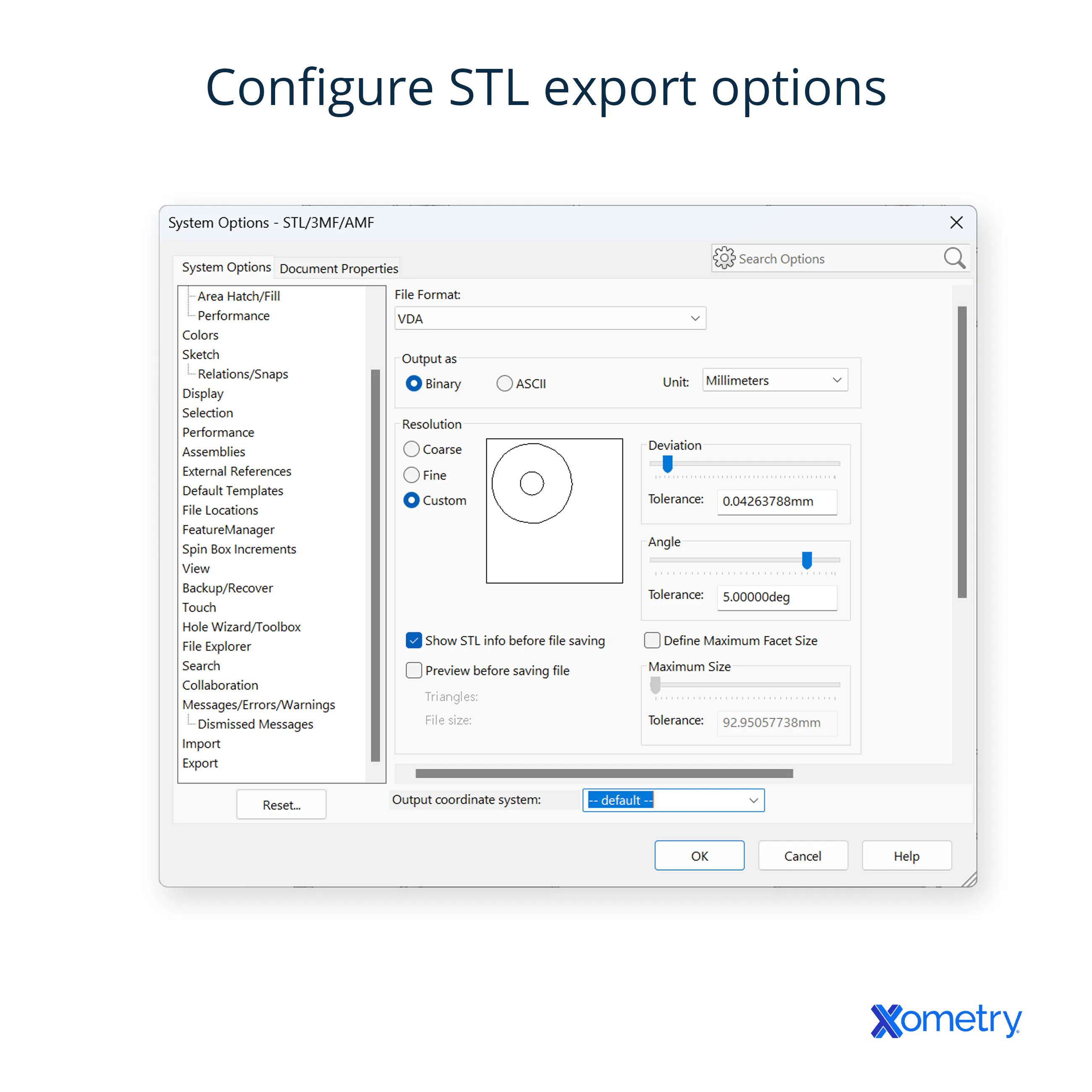
- Set the desired options for the STL file, such as Resolution and Units. Ensure the parameters affecting surface detail and accuracy for manufacturing are set. The exported mesh must align with production expectations.
- Set STL Mesh Resolution and Unit Parameters. The resolution settings control the triangle distribution, while the unit selection ensures the measurement system allows for consistent scaling during upload to fabrication platforms.
- Refine STL Geometry and Tolerance Settings. The mesh is used to improve surface fidelity for manufacturing checks and adjust tolerance values for accurate curve interpretation of edges.
- Adjust Settings based on .STL file requirements. Change configuration details and parameters for additive or subtractive workflows to ensure reliable quoting and manufacturability analysis.
- Choose a File Location to save the STL file. Pick a destination for quick upload access to online manufacturing services and select an organized folder for future project steps.
- Click “Save” to export the SLDPRT file as an STL file. Hit the command to convert a parametric model to a mesh and generate a file for evaluation and production routing.
- Open the STL file using a 3D Viewer or Slicer software. Check the mesh to inspect surface quality before submitting it for manufacturing. Open the file to confirm that the exported geometry aligns with production expectations.
- Validate the conversion and review the model. Confirm if the mesh is to ensure accurate design representation. Review the model for quoting, manufacturability, and fabrication readiness.
What To Know About the SLDPRT to STL Conversion?
Things to know about the SolidWorks Part File (SLDPRT) to Standard Tessellation Language (sometimes called Standard Triangle Language) (STL) are listed below.
- File Preparation: Opening the SLDPRT file ensures that the complete model loads correctly before any conversion begins. A fully prepared file provides the foundation for accurate mesh generation.
- Export Command: Selecting “Save As” initiates the transition from a parametric format to a mesh format. The command directs the software to prepare the model for STL output.
- File Type Selection: Choosing STL as the file type converts the design into a triangulated mesh structure. The format aligns with manufacturing systems that process digital geometry.
- Resolution and Units: Setting resolution and units defines the accuracy and scale of the exported mesh. Proper configuration ensures dimensional consistency during production analysis.
- Mesh Parameters: Adjusting mesh resolution and unit parameters influences triangle density and measurement scale. Balanced settings maintain clarity while controlling file size.
- Geometry Refinement: Refining geometry and tolerance settings strengthens surface detail and dimensional accuracy. The refinement step reduces risks of misinterpretation during manufacturability checks.
- Requirement Adjustment: Configuring settings based on STL requirements aligns the mesh with fabrication needs. Adjustments influence file stability, processing speed, and surface representation.
- File Location: Choosing a destination folder organizes project assets for efficient retrieval. Structured storage prevents delays during manufacturing submission.
- Final Export: Clicking “Save” completes the conversion and locks in all chosen parameters. The finalized STL file becomes ready for quoting and production workflows.
- Model Viewing: Opening the STL file in a viewer or slicer provides a clear inspection of the geometry. The viewing step confirms surface quality and structural accuracy.
- Validation: Validating the conversion ensures that the mesh reflects the original design intent. The review process confirms readiness for reliable manufacturing outcomes.
"Exporting to STL will be useful only in 3D printing applications. Beyond that, we prefer to have the solid model file and can always convert on our end for 3D printing"
What is SLDPRT?
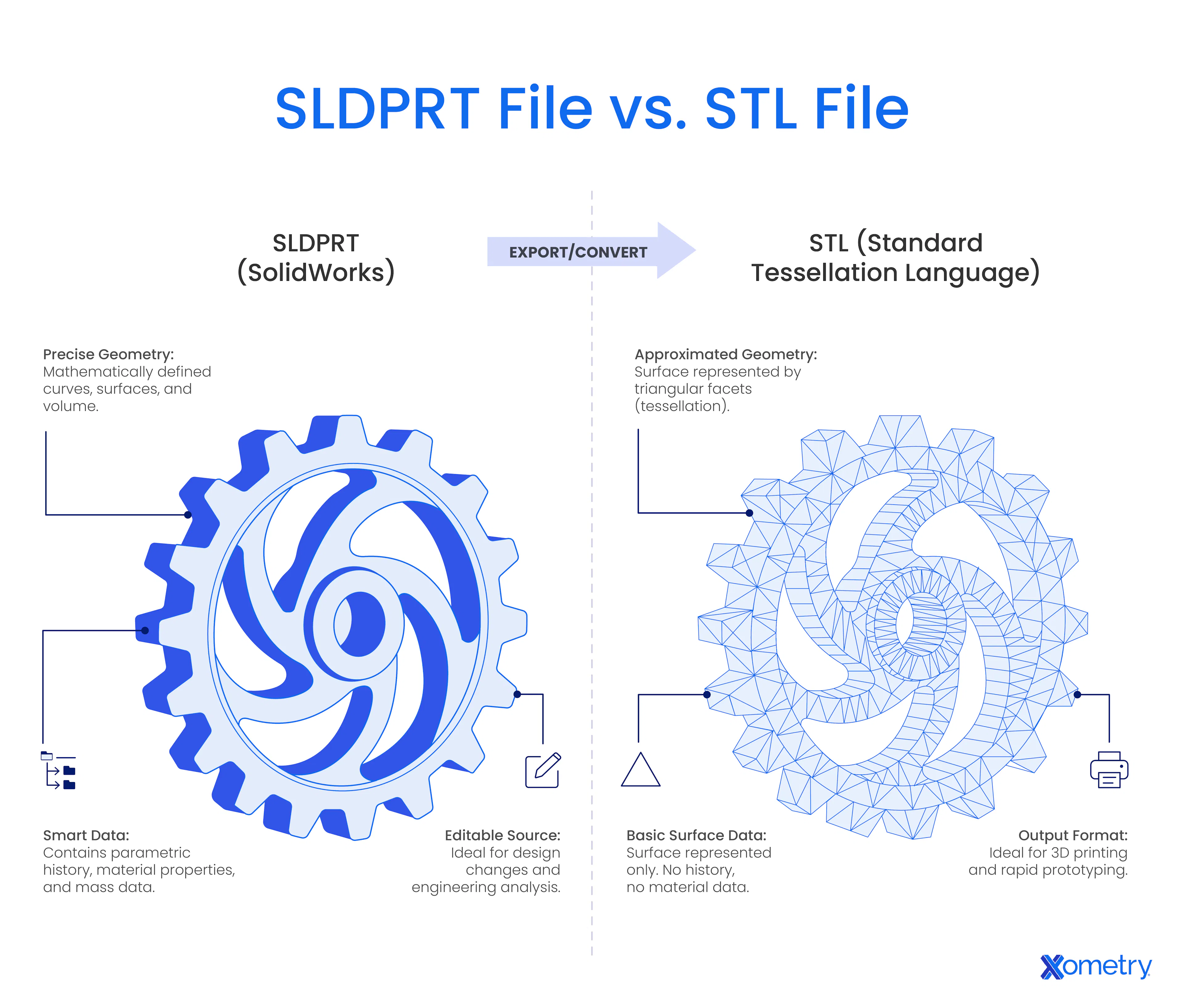
A SolidWorks Part File (SLDPRT) is a file format used in SolidWorks®, a parametric 3D modeling platform designed for engineering and manufacturing workflows. The SLDPRT format stores detailed geometric features, dimensional relationships, and material properties, allowing accurate part development for digital fabrication processes. The SLDPRT file functions as a structured container for design data, which is precisely translated into mesh formats like Standard Triangle Language (STL) for quoting and production preparation.
What is STL?
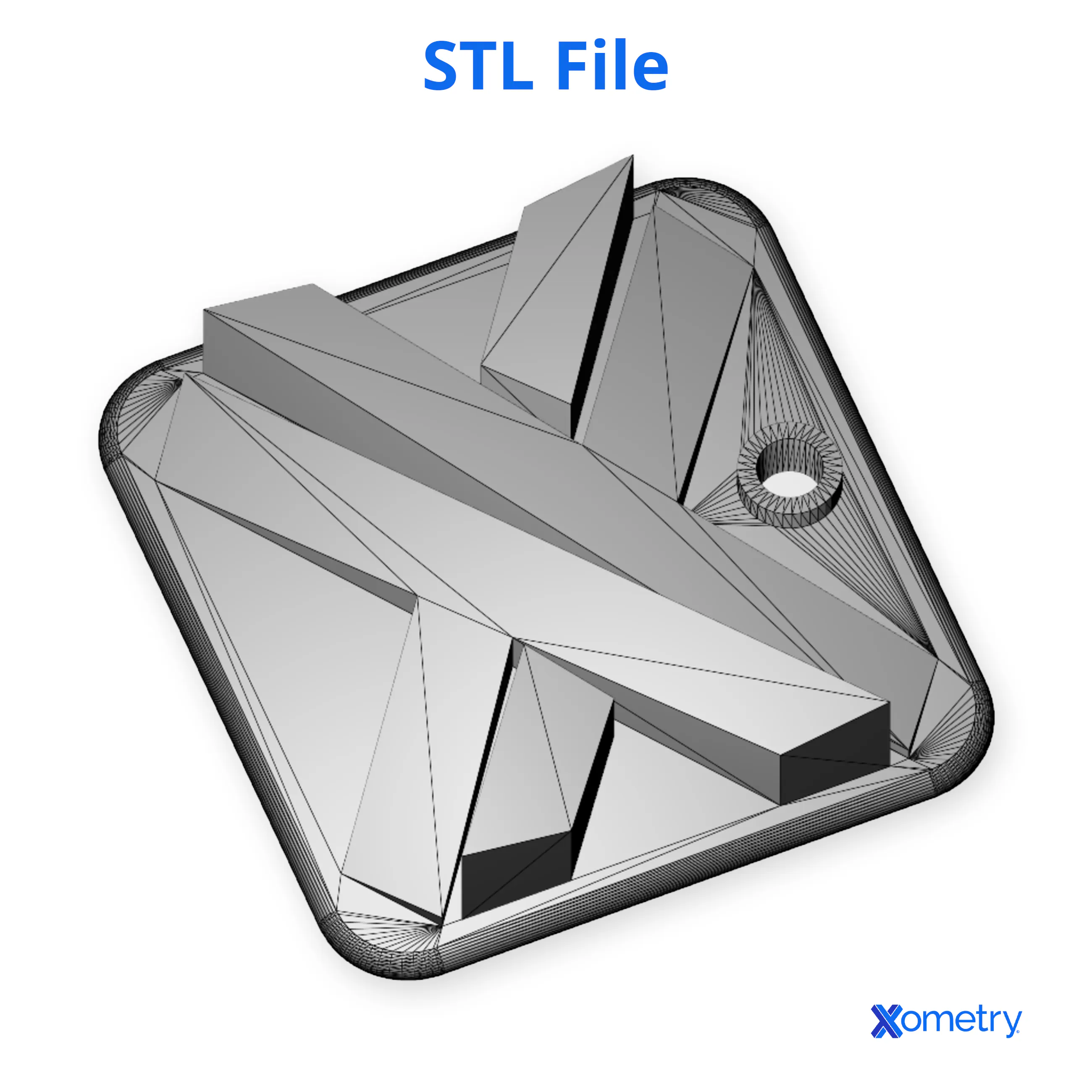
An STL file is a mesh‑based format used for transferring 3D geometry into manufacturing workflows. The format stores a model as a collection of triangular facets that describe surfaces without parametric features or internal design history. An STL file functions as a simplified geometric structure that supports quoting, manufacturability checks, and production preparation across digital fabrication systems.
What Is the Main Purpose of SLDPRT Conversion From STL?
The main purpose of the SolidWorks Part File (SLDPRT) conversion from Standard Tessellation Language (STL) is to import mesh geometry into a CAD environment to serve as a reference for reverse engineering. This process is similar to converting a PDF of a table back into an Excel spreadsheet: while the data is visible, the original formulas, cell relationships, and "intelligence" are lost. Converting an STL to an SLDPRT file type creates an "Imported Mesh Body" rather than a feature-rich model. This allows engineers to use the mesh as a geometric template to manually reconstruct a parametric model, which is necessary for workflows that require truly editable CAD data and precise dimensional control.
In practical terms, converting STL to SLDPRT places the mesh inside a CAD environment where it can be used as a reference to support downstream design and manufacturing preparation. Although the STL-derived geometry itself is not editable parametric CAD data, the .sldprt file format serves as the container in which engineers rebuild features, apply dimensions, and restore design intent manually. This distinction is important for manufacturing workflows that depend on fully editable CAD models rather than mesh-only representations. The SLDPRT file enables this reconstruction process rather than restoring original parametric intelligence automatically. The question, "What is an SLDPRT file?" helps clients understand the difference between a reference-based mesh import and a true parametric CAD format.
What Is the Main Purpose of STL Conversion From SLDPRT Conversion?
The main purpose of the Standard Tessellation Language (sometimes called Standard Triangle Language) (STL) conversion from a SolidWorks Part File (SLDPRT) conversion is to prepare a design for manufacturing systems that rely on mesh‑based geometry. An STL file converter transforms the parametric structure into a triangulated surface model that supports automated quoting and fabrication analysis. The STL conversion process allows engineers to convert files to STL so the geometry aligns with production workflows that interpret mesh data rather than feature‑based CAD information.
"An STL is a frozen copy of the original geometry: much like a printed blueprint, it shows the final shape but contains none of the live dimensions or sketches used to create it. Converting an SLDPRT to a mesh involves stripping away the parametric feature tree to produce a static triangulated surface that manufacturing hardware can interpret."
What Are the Other Ways to Convert SLDPRT to STL?
The other ways to convert a SolidWorks Part File (SLDPRT) to Standard Tessellation Language (STL) are listed below.
- Dedicated SLDPRT to STL Converter Tools: A dedicated way to convert SolidWorks to STL processes part files through direct mesh translation without requiring a complete CAD environment. Platforms (CAD Exchanger or CrossManager) provide structured export functions that prepare models for manufacturing workflows.
- Alternative SolidWorks to STL Converter Software: A standalone SolidWorks to STL converter replicates the export capability found in native CAD programs. Tools (FreeCAD or Onshape) import parametric data and generate STL files that align with fabrication requirements.
- Batch Conversion Utilities: A way of processing multiple SLDPRT files in a single automated workflow to support large‑scale preparation needs. Utilities (SpinFire or CAD Exchanger Batch) streamline repetitive export tasks while maintaining consistent settings.
- Free CAD or Mesh Editing Software: Free software programs that import neutral CAD formats (like STEP or IGES) and export them as STL files for manufacturing use. Programs (FreeCAD or Blender) provide accessible conversion paths that maintain reliable mesh quality after the initial SLDPRT file has been converted to a neutral format.
What Other Formats Can SLDPRT Be Converted to, Besides STL?
The other formats that SolidWorks Part File (SLDPRT) can be converted to, besides Standard Tessellation Language (STL), are shown in the table below.
| Target Format | Conversion Type | Typical Use | Notes |
|---|---|---|---|
| Target Format OBJ | Conversion Type Mesh Export | Typical Use 3D printing, rendering | Notes The format is used in 3D graphics and animation, which SLDPRT to OBJ allows polygonal data to be preserved efficiently for rendering or visualization. |
| Target Format 3MF | Conversion Type Mesh Export | Typical Use 3D printing, rendering | Notes The format is designed for additive manufacturing, wherein SLDPRT to 3MF supports full-color models, textures, and reliable printing workflows. |
| Target Format AMF | Conversion Type Mesh Export | Typical Use Additive manufacturing | Notes The ideal format for advanced 3D printing applications, in which SLDPRT to AMF allows multi-material and color data to be retained. |
| Target Format PLY | Conversion Type Mesh Export | Typical Use Color/scan workflows | Notes The format is used for point clouds and scanned models, as SLDPRT to PLY keeps detailed mesh and vertex information intact. |
| Target Format STEP (.stp) | Conversion Type CAD exchange | Typical Use Neutral CAD sharing | Notes Supporting accurate data exchange across CAD software is required, as SLDPRT to STEP (.stp) maintains complete solid geometry. |
| Target Format IGES (.igs) | Conversion Type CAD exchange | Typical Use Legacy CAD transfer | Notes Ensures compatibility with legacy CAD systems, and SLDPRT to IGES (.igs) preserves curves, surfaces, and wireframe structures. |
| Target Format Parasolid (.x_t / .x_b) | Conversion Type Geometry Kernel | Typical Use Interoperability | Notes Retaining the precise solid modeling data compatible with many parametric CAD tools is the purpose of SLDPRT to Parasolid (.x_t /.x_b) format. |
| Target Format SAT (ACIS) | Conversion Type CAD Exchange | Typical Use Engineering workflows | Notes Preserving solid and surface geometry is the use of SLDPRT to SAT (ACIS) format, making it suitable for complex modeling workflows. |
| Target Format FBX | Conversion Type Scene Geometry | Typical Use Rendering/animation often | Notes Exports models with textures, animations, and skeletal structures are used for SLDPRT to FBX in gaming and animation. |
| Target Format DAE (COLLADA) | Conversion Type Scene Geometry | Typical Use AR/VR, real-time apps | Notes 3D model is allowed to retain animation, textures, and cross-platform compatibility in SLDPRT to DAE (COLLADA). |
| Target Format WRL/VRML | Conversion Type Mesh + Color | Typical Use Full-color printing | Notes Web-ready 3D visualization with scene hierarchy and textures included is provided by SLDPRT to WRL / VRML format. |
| Target Format DXF | Conversion Type 2D Extraction | Typical Use Laser cutting | Notes Typically used for 2D flat pattern extraction from sheet metal or face exports for CNC laser/waterjet cutting. Primarily used for exporting 2D technical drawings and annotations for use in drafting software like AutoCAD. |
| Target Format DWG | Conversion Type 2D Extraction | Typical Use CAD drafting | Notes Preserving detailed annotations, layers, and design elements compatible with AutoCAD environments in SLDPRT to DWG. |
| Target Format STL | Conversion Type Mesh Export | Typical Use 3D printing | Notes The conversion of a solid model into a triangle mesh applies in SLDPRT to STL, making it ready for 3D printing and additive manufacturing. |
Why Do We Have To Convert SLDPRT to STL?
You have to convert a SolidWorks Part File (SLDPRT) to Standard Tessellation Language (STL) because it creates a mesh format that aligns with manufacturing systems that interpret triangulated geometry rather than parametric features. The conversion process supports 3-dimensional (3D) printing by generating a structure that slicer software reads accurately during layer preparation. The same STL format strengthens prototyping workflows by providing a lightweight file that transfers efficiently across digital platforms, making file sharing straightforward for teams that rely on consistent geometry during production planning.
Is Converting STL to STEP Easier than Converting SLDPRT to STL?
No, converting the Standard Tessellation Language (STL) to the Standard for the Exchange of Product (STEP) model data is not easier than converting a SolidWorks Part File (SLDPRT) to an STL. An STL file contains triangular surfaces without parametric features, while an SLDPRT model exports directly into a mesh format that aligns naturally with manufacturing workflows. The SLDPRT‑to‑STL process transfers existing geometry into a simplified structure for production use, while the STL to STEP Files process requires reconstruction of design intelligence.
What Are the Benefits of SLDPRT to STL Conversion to 3D Printing?
The Benefits of SolidWorks Part File (SLDPRT) to Standard Tessellation Language (STL) Conversion to 3-dimensional (3D) Printing are listed below.
- Reliable Surface Interpretation: The triangulated mesh in an STL file presents surfaces in a form that printing software interprets accurately. The structure reduces the risks of missing features during fabrication.
- Efficient File Sharing Across Production Teams: The lightweight nature of an STL file supports fast transfer across digital platforms used in manufacturing workflows. The simplified structure maintains consistent geometry during collaboration.
- Streamlined Prototyping Workflows: STL conversion prepares a model for rapid prototyping by removing parametric data that printing systems do not process. The resulting file supports quick evaluation of form and fit.
- Consistent Geometry for Automated Quoting: An STL file provides a stable representation of part geometry that automated quoting systems read without ambiguity. The uniform mesh structure supports accurate cost and feasibility assessments.
- Direct Compatibility with 3D Printers: STL conversion creates a mesh structure that aligns with the geometric requirements of 3D printing systems. The format supports smooth processing during slicing and layer‑generation stages.
What Are the Tips for Optimizing STL Files After Export?
Tips for Optimizing Standard Tessellation Language (STL) files after export are listed below.
- Validate mesh integrity. Inspect the mesh in a 3D viewer to confirm the exported geometry maintains "watertight" surfaces. Check for gaps, flipped normals, or irregular triangles that could cause failures in slicing software.
- Verify unit and scale accuracy. Confirm the model's dimensions in your viewer or slicer to ensure the units were interpreted correctly. This prevents scaling errors where a part intended to be in millimeters appears in inches (or vice versa).
- Evaluate surface continuity. Visually inspect the curves and transitions to ensure the "faceting" (the flat triangles) is not too coarse for your production needs. If the facets are visible on curved surfaces, you will need to re-export with a higher resolution.
- Optimize for file handling. If the file size is excessively large and causes the slicing software to lag, consider using a mesh decimation tool to reduce triangle density in flat areas where high detail is unnecessary.
- Perform a manifold check. Use a repair tool to ensure the mesh has no "non-manifold" edges (edges shared by more than two faces). This validation step ensures the file is ready for automated quoting and error-free 3D printing.
How Long Does It Take To Convert an SLDPRT File to STL?
It takes 10 seconds to 10 minutes under standard conditions (hardware performance) to convert an SLDPRT file to STL. The duration depends on factors (model complexity or mesh resolution settings) during the export process. Larger assemblies, dense surface details, and high‑precision parameters extend the processing time, while simpler geometry completes the transition more quickly.
What Are the Common Issues When Converting SLDPRT to STL?
The common issues when converting a SolidWorks Part File (SLDPRT) to Standard Tessellation Language (STL) are listed below.
- Non‑Manifold Geometry: The geometry interrupts the transition from an SLDPRT file to STL because the mesh forms edges or vertices that lack a clear structural definition. Repairing the geometry through cleanup tools restores a continuous surface that supports accurate STL generation.
- Incorrect Unit Scaling: The wrong units create STL files that appear too large or too small after export. Adjusting the unit settings before saving ensures that the converted STL model reflects the intended dimensions.
- Mesh Errors and Distorted Triangles: The errors occur when the triangulated surface contains warped, overlapping, or broken facets. Running a repair function in an STL converter free tool stabilizes the mesh and prepares it for reliable manufacturing analysis.
- Surface Gaps or Holes: The gaps appear when the original model contains incomplete faces that fail to translate into a closed mesh. Running a surface‑repair function seals the openings and prepares the file for reliable STL export.
- Corrupted or Incomplete Features: The features in the SLDPRT model generate missing or fragmented mesh sections during export. Rebuilding the affected features in the Computer-Aided Design (CAD) environment produces a stable structure that converts cleanly into an STL file.
How Xometry Can Help
With converted files that have complete designs, you’re ready for printing. If you’re in search of these types of services, Xometry has a wide range of 3D printing capabilities, including plastic 3D printing, multijet fusion, selective laser sintering, and more. Get your instant quote today.
Copyright and Trademark Notices
- SOLIDWORKS® is a registered trademark of Dassault Systèmes SolidWorks Corporation
- eDrawings® is a registered trademark of Dassault Systèmes SolidWorks® Corporation
Disclaimer
The content appearing on this webpage is for informational purposes only. Xometry makes no representation or warranty of any kind, be it expressed or implied, as to the accuracy, completeness, or validity of the information. Any performance parameters, geometric tolerances, specific design features, quality and types of materials, or processes should not be inferred to represent what will be delivered by third-party suppliers or manufacturers through Xometry’s network. Buyers seeking quotes for parts are responsible for defining the specific requirements for those parts. Please refer to our terms and conditions for more information.