
STEP to STL Converter: How to Convert a STEP File to an STL File?


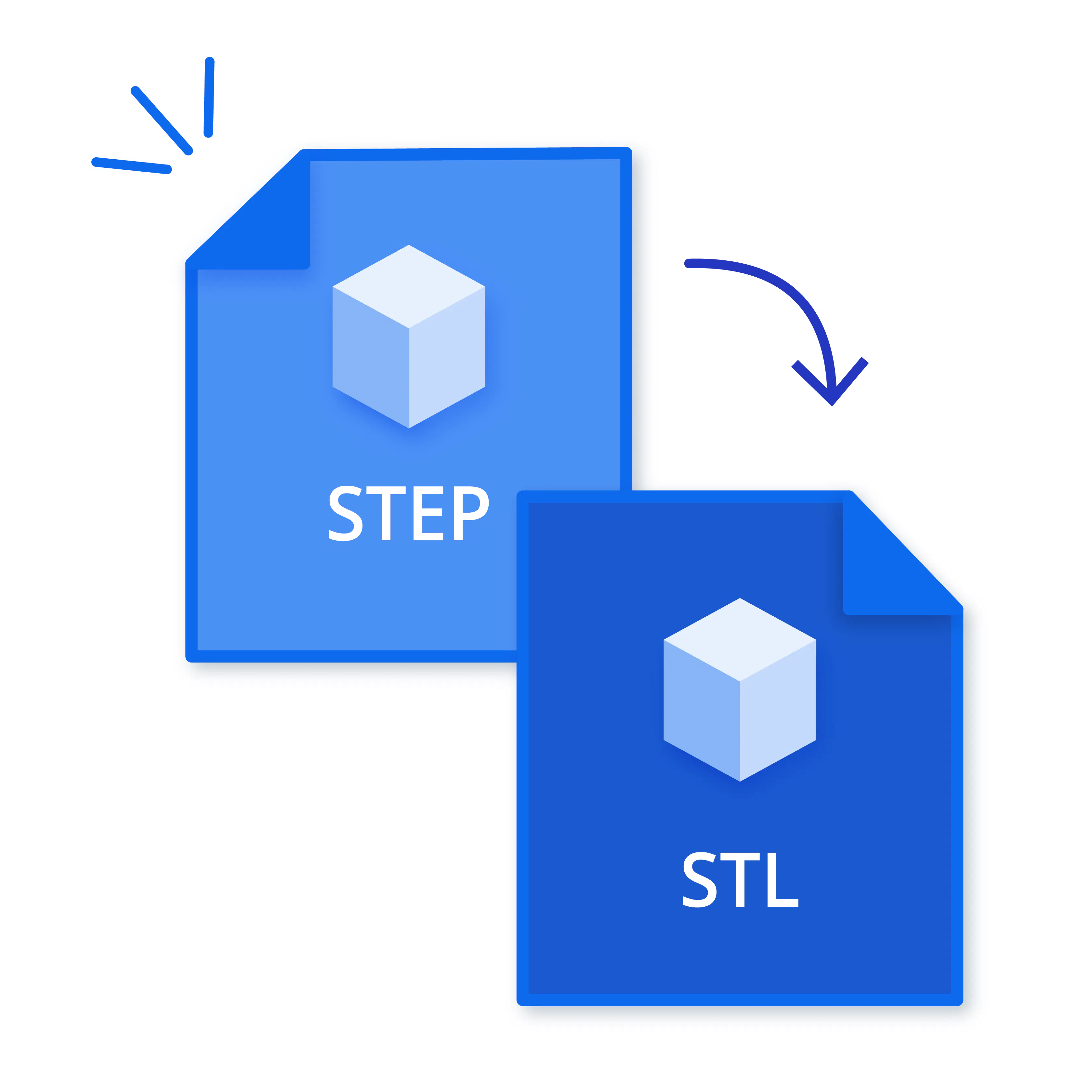
The Standard for the Exchange of Product (STEP) to Standard Triangle Language (STL) converter supports a transition from precise geometric data to a mesh format suited for additive manufacturing. A STEP to STL conversion provides benefits (improved slicing performance, easier file sharing, and compatibility with mesh-based workflows) commonly used in additive manufacturing. A STEP file contains mathematically defined surfaces for precise modeling, while an STL file uses a triangulated mesh that forms a printable shell, making it more suitable for production but less accurate for design refinement. A conversion process begins with loading the STEP model into a compatible tool, selecting the STL format, adjusting mesh resolution, and saving the final file for downstream production. STL files are commonly used in 3D printing and visualization; for simulation, formats like STEP or CAD-native may be preferable depending on the solver requirements.
Before You Get Started
Generally, we recommend not converting your STEP files to STL for manufacturing. STEP files inherently contain more useful data, such as units and solid data. From a manufacturing side, we can use STEP files to create high-resolution mesh files for printing to ensure the highest print quality. STEP files are also typically required for subtractive manufacturing processes like CNC machining.
At Xometry, your STEP file will cover all your bases, including 3D printing, machining, sheet cutting, and more. So, if you're planning on using our services, there may be no need to convert your files at all! If you want to proceed anyway, then continue with the steps outlined in the sections below.
How to Convert a STEP File to an STL File?
To convert a STEP file to an STL file, follow the five steps below.
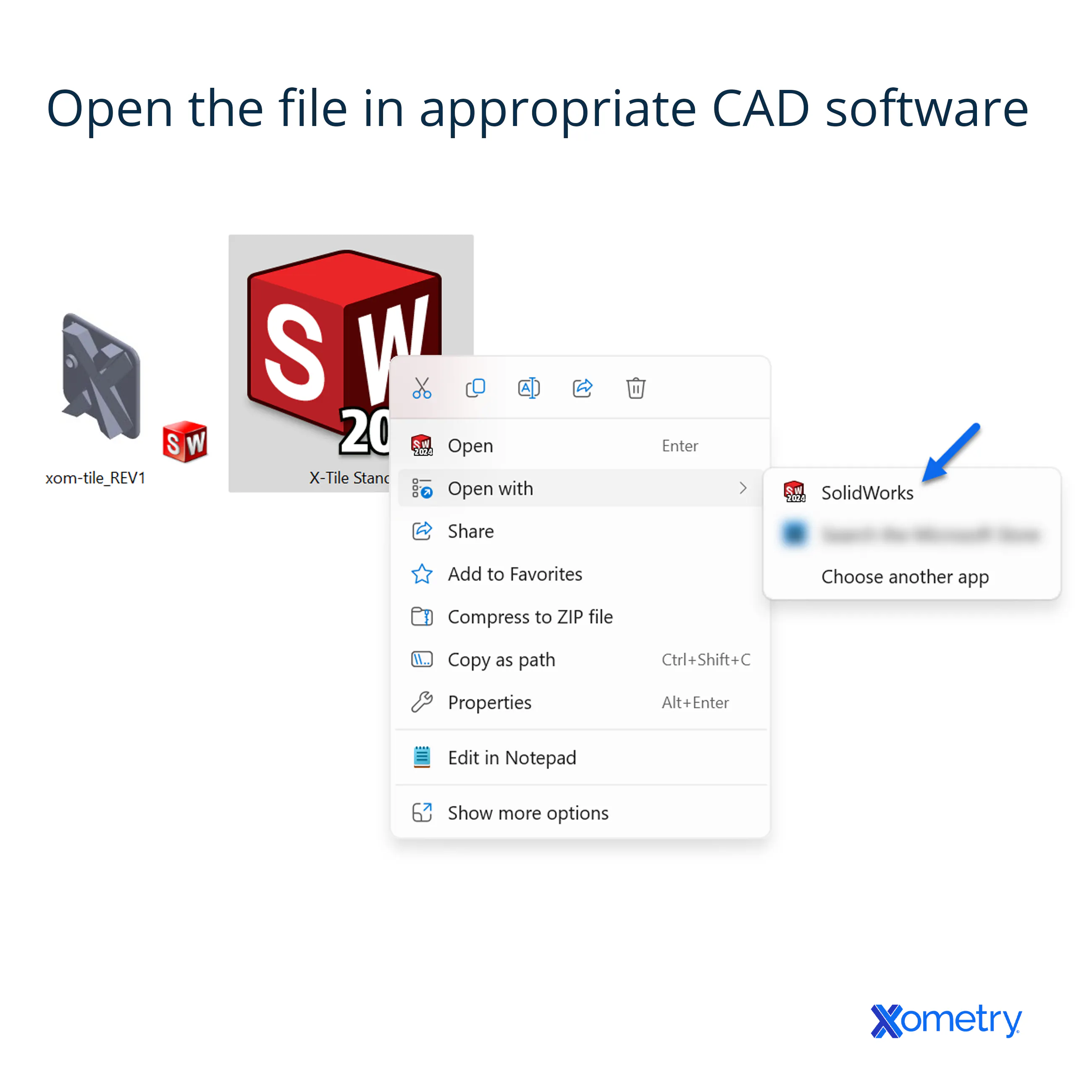
- Open the STEP file. A CAD program loads the STEP model into the workspace, forming the foundation for conversion. Clear display of surfaces and features ensures the model enters export without structural issues.
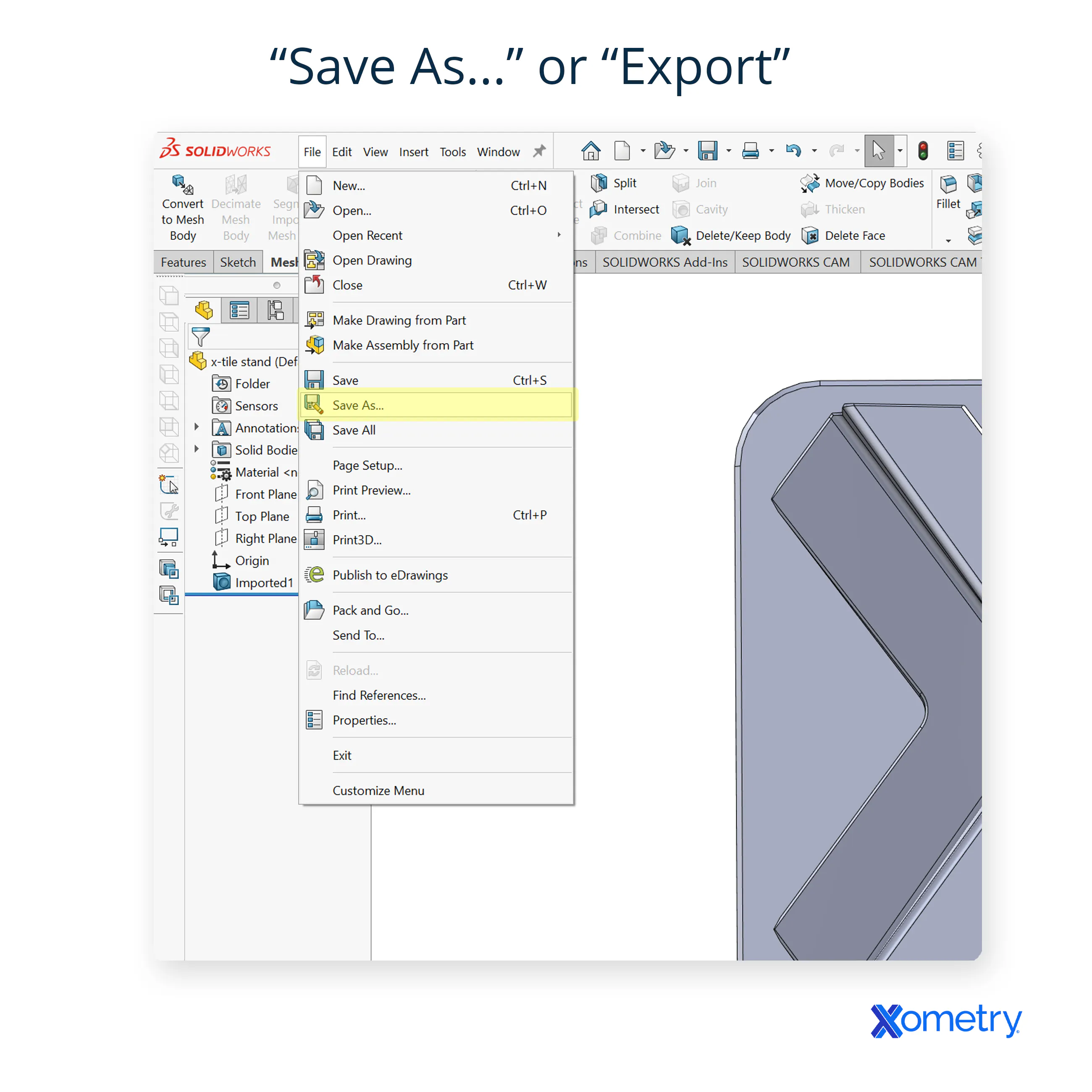
- Open the file export settings. An export menu offers format options and pathways for converting the model into a mesh file. A review confirms the export panel has the correct format tools.
- Select STL as the file format. An STL option in export assigns a mesh format for additive manufacturing, shifting the model from solid geometry to a triangulated surface.
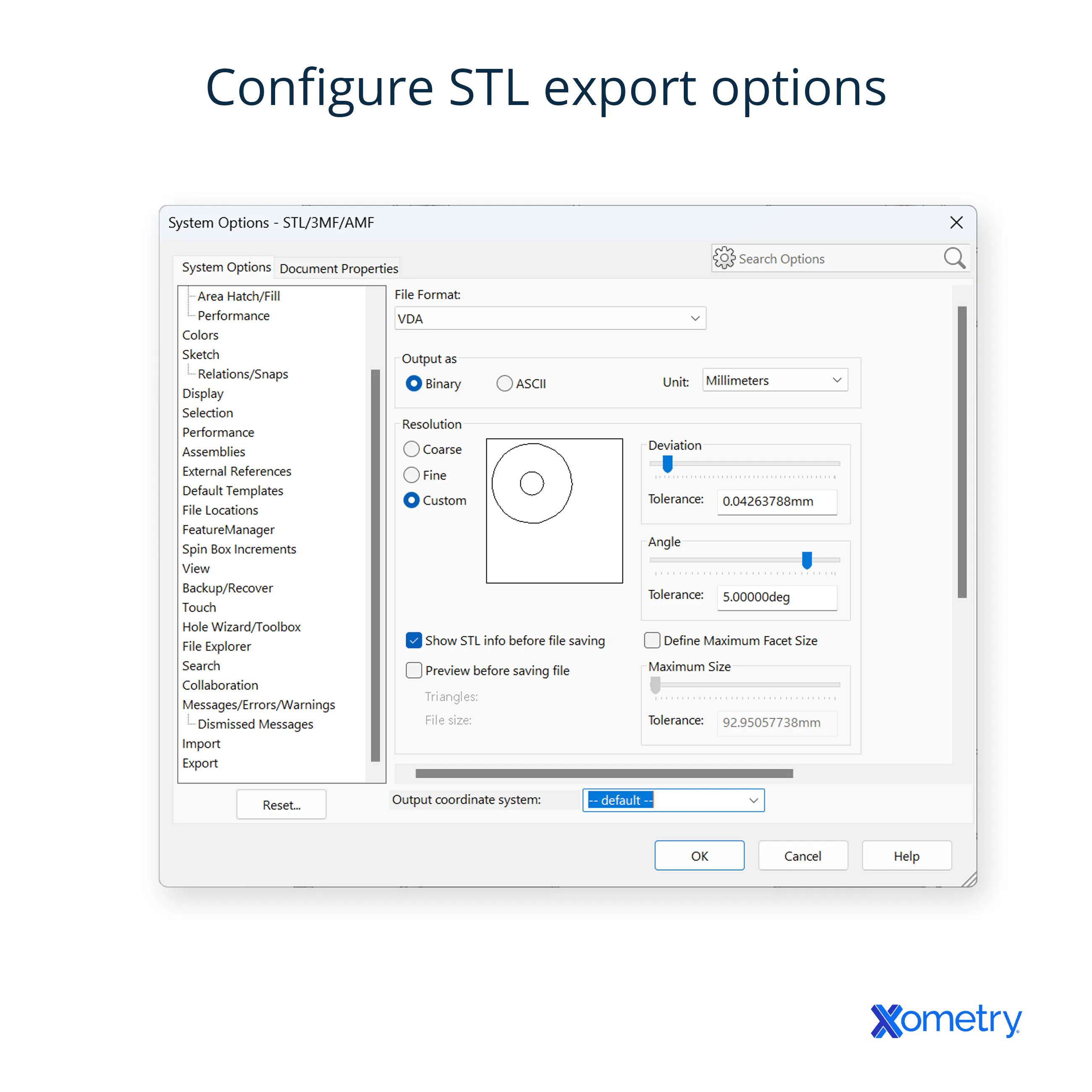
- Check for and configure STL export options. A settings panel offers controls for resolution, tolerance, and mesh density, affecting the final file's accuracy. A balanced setup preserves detail without increasing file size unnecessarily.
- Save the file. A save action finalizes the conversion and stores the STL in the selected directory, making it ready for slicing, simulation, or manufacturing.
Step 1 of 5
1. Open the STEP file
Import the STEP model into the workspace.
What the Step Involves
A conversion workflow begins by bringing the Standard for the Exchange of Product (STEP) model into the Computer-Aided Design (CAD) environment, creating the starting point for every action that follows. The software interprets the geometric data and displays the part with complete surface definitions, allowing the model to appear exactly as designed. A clear and complete import supports accurate mesh preparation because the geometry enters the workspace without distortion. The loading stage ensures that the structure remains intact before any mesh settings are applied during Standard Triangle Language (STL) export. A stable import step establishes a dependable foundation for generating a mesh suited for additive manufacturing and digital simulation.
Why the Step Matters
The opening stage holds significant importance because every subsequent operation depends on the accuracy of the initial import. A complete load prevents issues that affect mesh quality, surface continuity, and dimensional stability. A reliable import step strengthens the entire workflow by preserving the integrity of the original engineering model.
⭐ Importance Level: CRITICAL — Essential Start of the Conversion Process
Open → Import Model → Choose STEP Format (.step or .stp)
Pro Tips
- Confirm file integrity before importing.
- Use a dedicated folder to avoid version conflicts.
- Check that the CAD platform supports the whole STEP geometry.
- Inspect the model for missing faces after loading.
- Maintain consistent file naming for organized workflows.
- Use versioned and descriptive file names to track model revisions and streamline exports.
Why should you Convert a STEP File to an STL File?
You should convert a Standard for the Exchange of Product (STEP) file to a Standard Triangle Language (STL) file to create a format suited for additive manufacturing and rapid prototyping. A STEP file holds detailed geometric data for design work, while an STL file presents a triangulated surface that supports direct preparation for layer‑based production. A conversion process delivers a benefit (a lighter file structure) that supports faster processing during quoting and production workflows. A conversion process supports use cases (preparing a part for 3D printing, validating surface geometry, and streamlining automated manufacturability checks). A conversion process strengthens the transition from detailed design to production‑ready output in a manufacturing platform environment.
What is a STEP File?
A Standard for the Exchange of Product (STEP) file is a standardized 3D model format that stores precise geometric data for engineering and manufacturing workflows. A STEP file supports detailed assemblies and complex shapes through a structure that preserves accurate dimensions for design review and production planning. The file format serves CAD and 3D modeling tasks by allowing smooth data exchange between different software platforms in a manufacturing environment. Maintaining a level of detail that supports quoting, design validation, and preparation for downstream processes (machining or additive production) is the use of a STEP file.
What is an STL File?
A Standard Triangle Language (STL) is a surface‑based 3D model format built from a collection of triangular facets. An STL file structure supports accurate shape interpretation by converting solid geometry into a mesh suited for additive manufacturing workflows. The format of the STL file is important in 3D printing because a mesh structure aligns with layer‑by‑layer production methods used in online manufacturing platforms. It supports quoting, print preparation, and automated checks by presenting a simplified model that aligns with production requirements.
What Programs can Open STEP Files?
Programs that can open STEP files are listed below.
- Fusion 360: A program that loads STEP files into a cloud-based modeling environment that maintains strong compatibility with neutral formats. It converts imported geometry into a structured timeline for further modification.
- AutoCAD: A program that reads STEP files via 3D modeling tools, displaying solids and surfaces accurately. It supports engineering workflows needing neutral-format exchange.
- CATIA: A program that imports STEP files into a high‑end design environment supporting advanced surface modeling and assembly management, maintaining strong interoperability for aerospace, automotive, and industrial sector applications.
- Siemens NX: Siemens NX maintains geometry during STEP import but may not retain original feature history unless STEP files include specific metadata.
- Onshape: A program that loads STEP files directly into a browser-based workspace with collaborative editing and no local install. It ensures reliable geometry translation for distributed engineering teams.
What are the Best STEP to STL File Converters?
The STEP to STL file converters are listed below.
- FreeCAD: A converter offering reliable speed for STEP models, with a parametric core that keeps geometry stable during export. Its open-source design ensures broad compatibility across engineering environments.
- Onshape: STEP‑to‑STL conversion via a browser system offers fast processing for large assemblies and supports compatibility across collaborative workflows.
- Fusion 360: A converter transforms STEP files to STL with high accuracy, processing complex models efficiently. Cloud support ensures broad manufacturing compatibility.
- SolidWorks: A fast STEP-to-STL converter that preserves fine details during mesh creation and maintains compatibility with fabrication tools.
- PTC Creo: Creo provides detailed export control, but as with most tools, STL files represent only mesh data, not full design features or tolerances.
Why Use Xometry to Convert STEP Files to STL Files?
Use Xometry to convert Standard for the Exchange of Product (STEP) to Standard Triangle Language (STL) files because it delivers a streamlined path from detailed STEP geometry to a production‑ready STL mesh. Xometry provides a benefit (fast processing) that supports immediate use in quoting and additive manufacturing workflows. Its interface supports accurate translation by preserving essential shape information during the conversion process. The environment of Xometry strengthens part preparation by aligning the converted file with automated checks, printability assessments, and rapid production steps.
How to Use a STEP to STL Converter Online?
To use a STEP to STL converter online, follow the five steps below.
- Select the 3D file from the device and load it into the STEP to STL converter online. The step ensures the tool reads the geometry before processing.
- Check that the uploaded model is in a supported STEP extension. It avoids errors when attempting to convert a STEP file to STL online.
- Choose STL from the available export formats in the converter. It tells the system exactly how to structure the mesh for downstream use.
- Modify resolution, scale, or orientation if the converter provides customization controls. The adjustments help optimize the STL for printing or simulation.
- Save the converted STL to the device once the process completes. Use it for manufacturing, visualization, or CAD workflows.
- Ensure the STEP file is valid and complete before uploading to an online converter. Corrupted or incomplete STEP files may crash or return flawed STL output—basic validation improves results.
"From a working engineer’s perspective, STEP files are where design intent becomes reliable across tools, teams, and vendors. Native CAD files work well inside their own software, but STEP is where the geometry has to hold up on its own. When a STEP file opens cleanly, solids knit correctly, assemblies stay aligned, and dimensions carry through, it shows the model is ready for manufacturing discussions, quoting, and real risk. When it fails, the cause is rarely the STEP format itself. The problems usually come from weak modeling upstream: poor surface quality, unclear topology, or unfinished assemblies. In practice, STEP is not just a neutral exchange format; it is a quality check. It forces a model to prove it is geometrically sound, interoperable, and ready to leave the CAD environment and move into fabrication, inspection, and coordination."
Where can you find a STEP to STL Converter Online?
You can find a STEP to STL converter online through the following tools listed below.
- ImageToSTL: A browser‑based tool converts STEP files to STL quickly with no installation required. It’s known for fast processing and supports batch uploads for an efficient workflow.
- AnyConv: The website offers a simple upload‑and‑convert process that completes in seconds. It’s designed for quick, lightweight conversions with automatic file deletion for privacy.
- FabConvert: The platform handles STEP‑to‑STL conversion directly in the browser with reliable server‑side processing. It also supports mesh repair options, making it useful for 3D printing preparation.
Is It Safe to Use an Online File Converter?
Yes, it is safe to use an online file converter that presents a safe option when the platform maintains secure upload handling, clear data‑removal practices, and reliable processing standards. A trusted converter supports design workflows by protecting sensitive models during transfer and by maintaining stable performance throughout the conversion process.
How to use a CAD Program to Convert STEP to STL Files?
To use a CAD program to convert STEP to STL files, follow the five steps below.
- Open the STEP file in a CAD Program. The STEP model with full geometric detail allows accurate inspection before export. The structured environment supports engineering tasks that require dependable model handling.
- Export the model through the CAD Program menu. A tool that provides an export function that prepares the model for format conversion. Dimensional accuracy in STL depends on mesh resolution—higher-resolution exports more closely approximate the original STEP model.
- Select STL as the output format. A tool that offers STL as a standard export, ensuring models shift from solid geometry to a mesh format suitable for additive manufacturing printing.
- Adjust mesh settings before finalizing the export. Mesh‑control tools that refine resolution, surface quality, and file structure are included. The settings support engineering and 3D‑printing tasks that require precise output accuracy.
- Save the STL file to complete the conversion. A tool that generates the STL file after the export settings are confirmed, and the saved file delivers a stable mesh that supports downstream printing and simulation processes, produced by the CAD program.
When should CAD be preferred for STEP-to-STL Conversion?
CAD should be preferred for the Standard for the Exchange of Product (STEP) to Standard Triangle Language (STL) conversion when a project demands precise control over mesh structure and accurate handling of complex geometry. A CAD environment supports engineering requirements by maintaining dimensional integrity during export and by providing detailed adjustment options that influence surface quality and file reliability. A CAD workflow offers greater consistency for complex parts, making it a preferable choice over an online converter when accuracy and stability are crucial in the final result.
Why use CAD instead of Online Tools for Conversion?
Use CAD instead of online tools for conversion because it offers a stronger option than an online tool for the Standard for the Exchange of Product (STEP) to Standard Triangle Language (STL). A CAD environment maintains higher accuracy during geometric processing. The workflow supports detailed mesh control that influences surface quality, file structure, and dimensional reliability. A CAD platform aligns with professional engineering practices by providing stable export behavior that supports manufacturing requirements and consistent 3D‑printing preparation.
Can All CAD Programs Convert STEP Files to STL?
No, not all CAD programs can convert Standard for the Exchange of Product (STEP) files to Standard Triangle Language (STL) due to a lack of direct export support, which limits their ability to process a STEP model into a mesh format. A CAD platform with full export capability delivers stronger control over geometry and mesh structure, creating a more reliable path for engineering and 3D‑printing preparation.
How long does it Take to Convert a STEP file to STL?
The timeframe takes at least 5 seconds to convert a Standard for the Exchange of Product (STEP) file to Standard Triangle Language (STL). The conversion requires a short processing period when the file size remains moderate, and the software operates efficiently. Larger models extend the duration because a greater volume of geometric data demands more computation. Software performance influences the process as stronger processing capability delivers faster handling of complex surfaces and higher mesh detail.
What are the Problems when Converting a STEP File to an STL File?
The problems when converting a STEP file to an STL file are listed below.
- Loss of Geometric Precision: A STEP model holds exact surfaces, while an STL file relies on triangles that reduce mathematical accuracy. The shift from precise geometry to a mesh structure introduces small deviations that influence dimensional reliability.
- Creation of Rough or Uneven Mesh Surfaces: A conversion process generates triangles that form the outer shell of the model, and poor settings produce visible faceting. A rough mesh affects print quality because surface detail depends on consistent triangle distribution.
- Large File Size from Dense Triangulation: A high‑resolution mesh increases the number of triangles, which expands storage requirements. A larger file slows processing during slicing and simulation tasks.
- Errors Caused by Gaps or Corrupted STEP Geometry: A STEP file with missing surfaces or flawed edges produces an STL with holes or broken regions. A damaged mesh disrupts manufacturing preparation because repair steps become necessary.
- Loss of Internal Features: An STL format records only external surfaces, which removes internal structures present in the STEP model. A missing internal feature affects engineering evaluation because certain design elements no longer appear in the exported file.
- Orientation Problems During Export: A conversion process sometimes rotates or flips the model due to differences in coordinate systems. An incorrect orientation affects downstream workflows because alignment influences printing and machining setup.
"STEP files can be used across most manufacturing processes, where STL files are specific only to 3DP. However, if a part is only ever going to be 3D Printed, a STL file will not need to be converted before printing."
Is it Possible to Convert an STL file to STEP?
Yes, it is possible to convert a Standard Triangle Language (STL) to a Standard for the Exchange of Product (STEP) through software that reconstructs surfaces from a mesh, although the process introduces challenges. An STL file contains triangles without accurate geometric definitions, which forces the software to approximate surfaces during reconstruction. A STEP format requires precise mathematical geometry, and the gap between mesh data and solid features creates limitations in accuracy. There are CAD platforms (Geomagic Design X) and mesh‑processing applications that support the operation through algorithms that interpret the mesh and generate a solid model suitable for design and manufacturing tasks, making it feasible to convert an STL file to STEP.
What are the Differences Between STEP and STL Formats?
The differences between STEP and STL Formats are shown in the table below.

Get Your STEP or STL Files Instantly Quoted
How Xometry Can Help
If you need any clarification on the conversion or to learn more about the different file formats used in custom 3D printing services, please feel free to reach out to one of our representatives. At Xometry we actually accept many different native file formats, including STEP and STL! This makes it easy to upload your CAD files for instant quotes without going through conversions. In fact, we actually prefer users upload STEP files whenever possible as they can be used for quoting and manufacturing both additive processes like 3D printing, and subtractive processes like CNC machining. If you're looking for custom-made parts, you can get an instant quote by uploading your native files to the Xometry Instant Quoting Engine® and get started straight away.
Disclaimer
The content appearing on this webpage is for informational purposes only. Xometry makes no representation or warranty of any kind, be it expressed or implied, as to the accuracy, completeness, or validity of the information. Any performance parameters, geometric tolerances, specific design features, quality and types of materials, or processes should not be inferred to represent what will be delivered by third-party suppliers or manufacturers through Xometry’s network. Buyers seeking quotes for parts are responsible for defining the specific requirements for those parts. Please refer to our terms and conditions for more information.